🪓 Simplifying the Graph
So far we used the default visualization settings, which are good for most cases. However, sometimes you may want to either simplify the graph to make it more readable, or to increase the complexity by going into more detail. NNViz CLI allows you to do both, so let’s see this in action.
Drawing submodules
Sometimes you may be interested in visualizing only a specific submodule instead of the whole thing. To do so, you can pass the -l or --layer option to the nnviz command, followed by the name of the submodule you want to visualize. The submodule can be specified using a dot-separated path, just like you would do in python.
nnviz resnet18 -l layer2.0
nnviz convnext_tiny -l features.3.0.block
This will only plot the specified submodule and all of its children and save the result to a pdf file named after the submodule. For example, in the first example above, the pdf file will be named resnet18_layer2-0.pdf and in the second, convnext_tiny_features-3-0-block.pdf. You can always change the name and format of the output file using the -o or --out option.
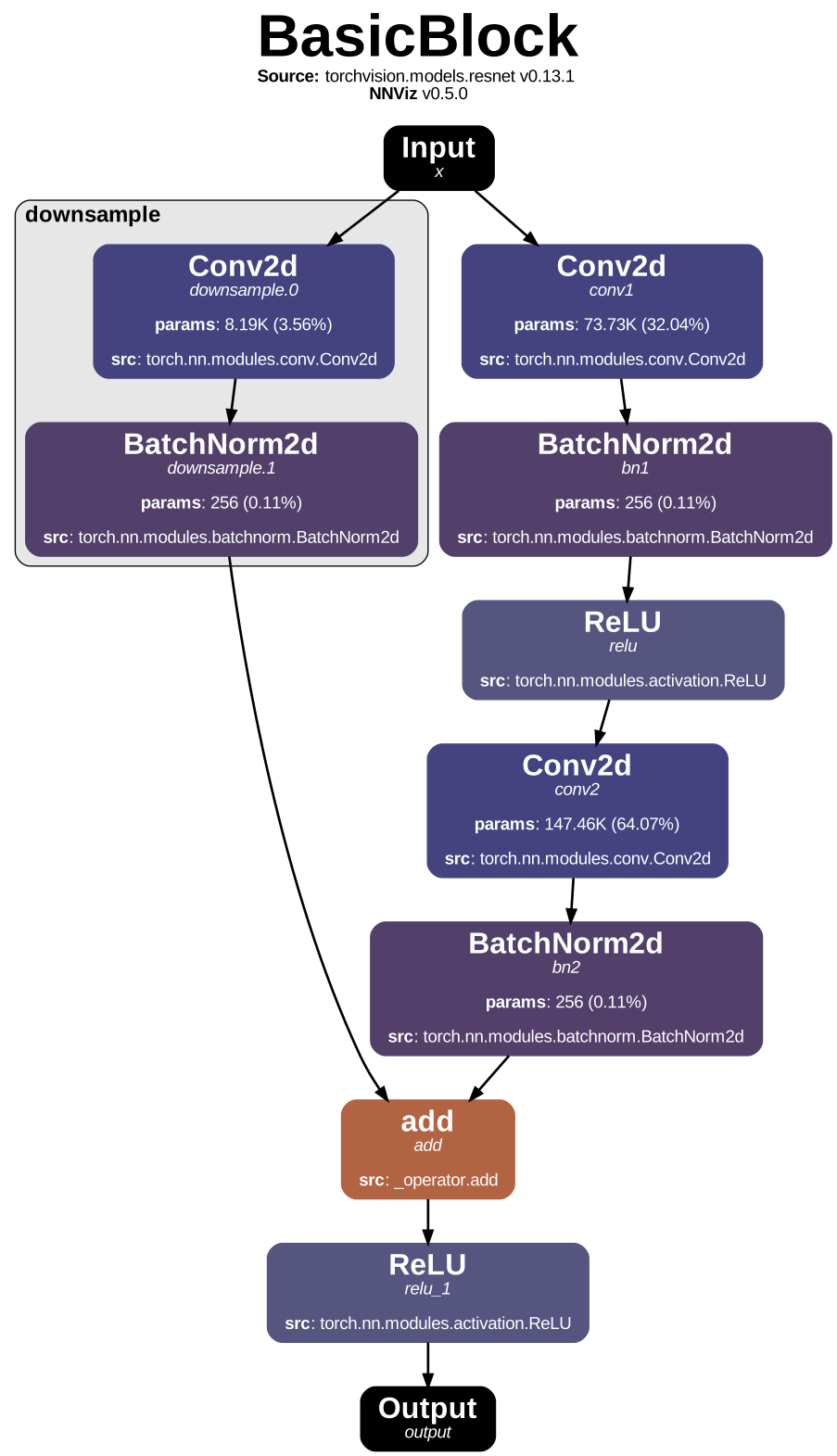
Resnet18 submodule "layer2.0"
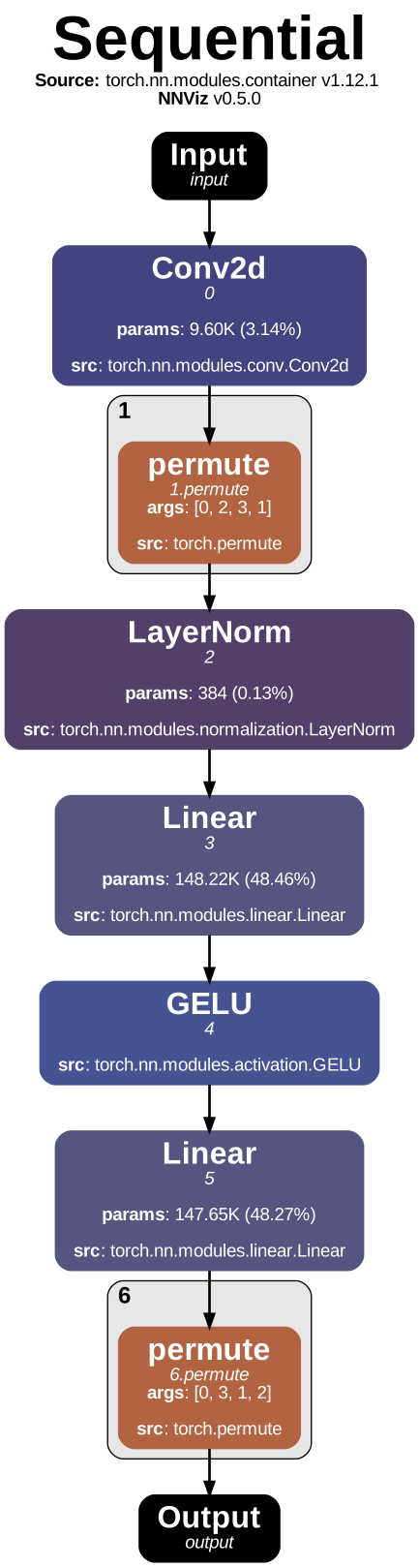
Convnext Tiny submodule "features.3.0.block"
Collapsing nodes
With NNViz, you can also collapse groups of nodes into a single “collapsed” node to reduce the complexity of the graph and improve readability. Currently the CLI allows to do so by two different methods:
Collapse by depth: merge together all nodes that have a depth greater than a specified value. The “depth” of a node is the number of nested submodules it is contained in.
Collapse by name: merge together all nodes that share the same path prefix. This is useful in case you want a detailed view of a specific submodule, but you don’t care about the details of the other ones.
The depth collpsing is enabled by default and set to 2, which in most cases is enough to reduce the complexity of the graph without losing too much information. You can change the depth by passing the -d or --depth option to the nnviz command, followed by the desired depth.
Set the depth to -1 to disable depth collapsing and plot the whole graph.
nnviz efficientnet_b0 -d 1
nnviz efficientnet_b0 -d 2
nnviz efficientnet_b0 -d 3
nnviz efficientnet_b0 --depth -1
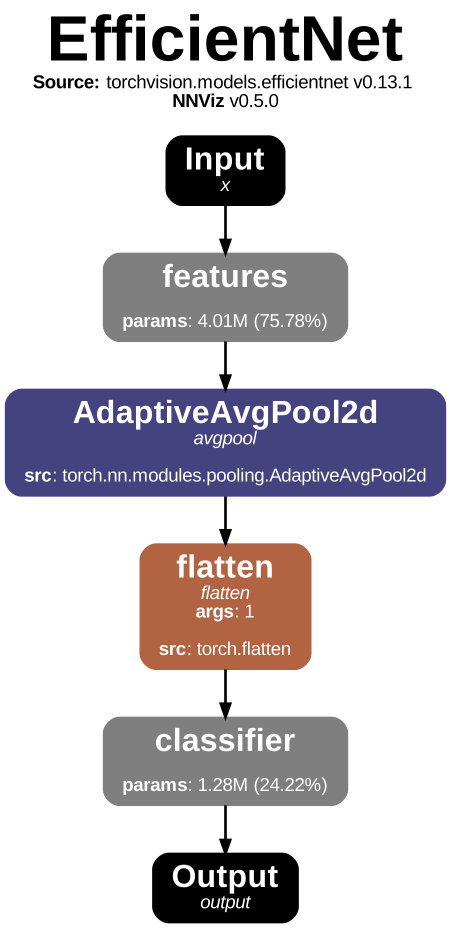
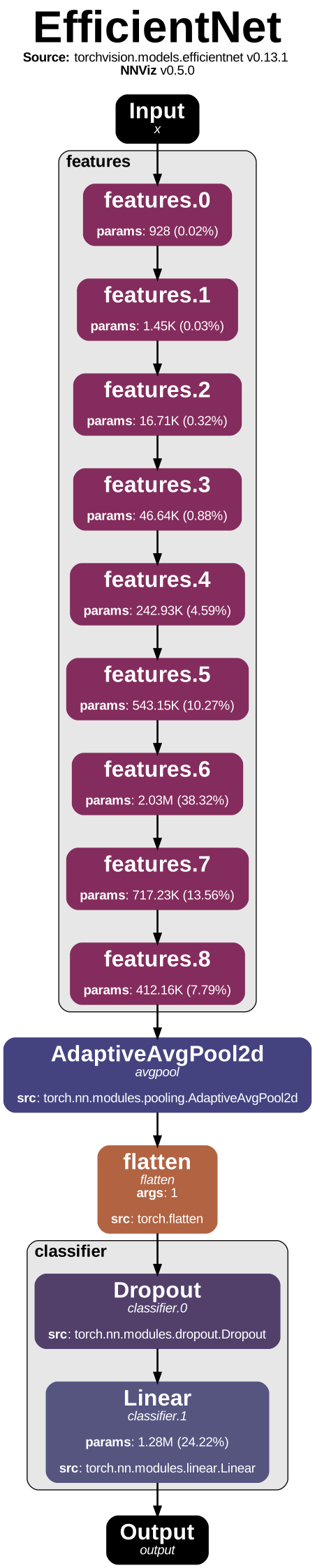




Efficientnet B0 visualized at different levels of detail (from 1 to 6)
To collapse by name, you can pass the -c or --collapse option to the nnviz command, followed by a path prefix. The path prefix can be specified using a dot-separated path, just like you would do in python. You can use this option multiple times to collapse multiple groups of nodes.
nnviz efficientnet_b0 --depth -1 --collapse features
Here, the “classifier” will be fully displayed, but the “features” submodule will be collapsed into a single node.
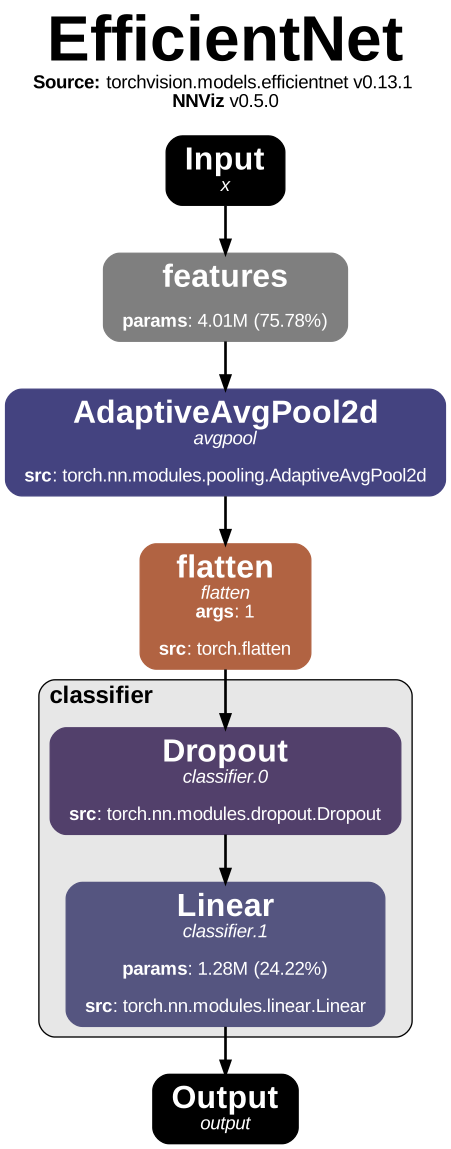
Collapsing the "features" submodule of an Efficientnet B0